Because sometimes, your screen time needs boundaries too.
Ever tried to stay focused… and somehow ended up doom-scrolling Reddit or watching one too many TikToks? Yeah, me too.
If you’re using an iPhone, there’s actually a simple way to block distracting websites — no need to download anything sketchy or jailbreak your phone. Whether it’s for you, your kid, or both, here’s how to get it done — in plain English.
Why Block Websites in the First Place?
Maybe it’s about productivity. Maybe you’re setting parental controls. Or maybe you’re just tired of falling down the YouTube rabbit hole.
Whatever your reason, iPhones come with built-in tools to help you take back control of what gets your attention.
Step-by-Step: Block Websites on iPhone
1. Open Settings
Scroll down and tap on Screen Time.
2. Tap Content & Privacy Restrictions
Turn the switch on if it’s not already.
3. Go to Content Restrictions → Web Content
You’ll get three choices:
- Unrestricted Access
- Limit Adult Websites
- Allowed Websites Only
4. To Block Specific Sites:
Choose Limit Adult Websites, then under Never Allow, tap Add Website.
Type in the URL (e.g., www.reddit.com), hit Done.
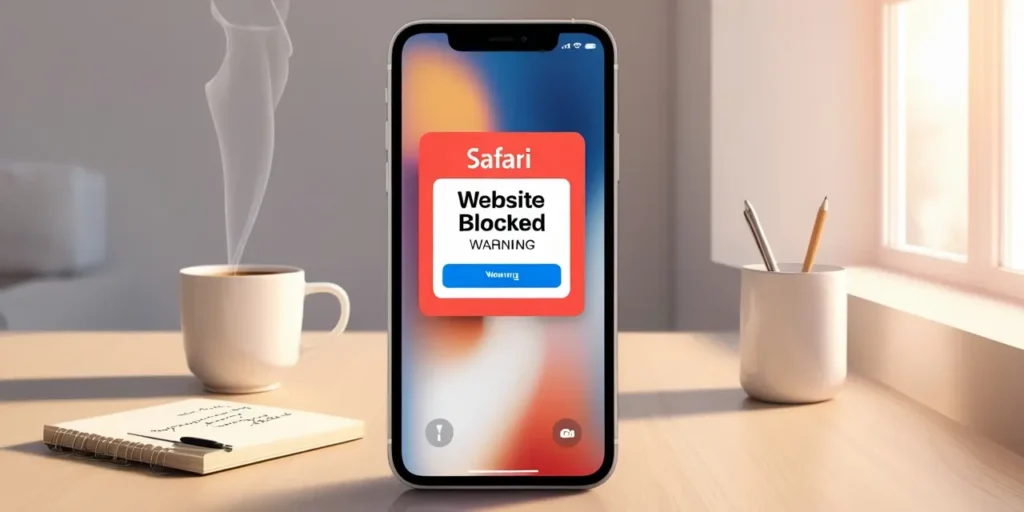
Boom. That site’s blocked on Safari.
Extra Tip: Set a Screen Time Passcode
This keeps others — or even your future self — from changing the setting.
Go back to Screen Time, scroll to Use Screen Time Passcode, and lock it in.
💡 Follow-Up: Got Questions?
Here’s what people usually ask me after setting this up:
Q: Can I block websites without using Screen Time?
A: Apple doesn’t offer that natively. But there are third-party apps like Freedom or Mobicip. Just know most free ones come with limits.
Q: Does blocking work in Private or Incognito mode?
A: Yes — Apple’s restrictions apply even in Private Safari windows.
Q: Can I block sites only during certain hours (like work time)?
A: Not exactly. Apple doesn’t offer time-based website blocks yet. You’d need a third-party app for that level of control.
Q: Does this work in Chrome or other browsers?
A: Not reliably. Safari respects Screen Time rules. Other browsers might not, unless the app also supports Apple’s restrictions.
🧠 Final Thought: This Isn’t About Control — It’s About Clarity
You’re not blocking sites because the internet is “bad.” You’re just choosing where your focus goes. That’s smart.
I’ve used these settings during deep work hours. And yep, it helped — a lot. No judgment. Just a small nudge in the right direction.
If you’re setting it up for your kids, it’s about building healthy habits, not restriction. Let the tech be the guardrail — not the jail.